See every athlete in your competition and manage their entries from one screen.
What It Does
The Manage Entries page gives you a complete view of all athletes entered in your competition, grouped by event. From here you can search, filter, and manage individual entries — including switching events, cancelling entries, and handling transfers.
If your competition uses a waiting list, you can also promote athletes into open spots from the same page.
Why It Matters
Keeping track of who is entered in each event — and making changes when plans shift — is one of the most time-consuming parts of running a competition. Manage Entries puts everything you need in one place so you can see your full field at a glance and act on it quickly.
How to Use It
1. Open the Page
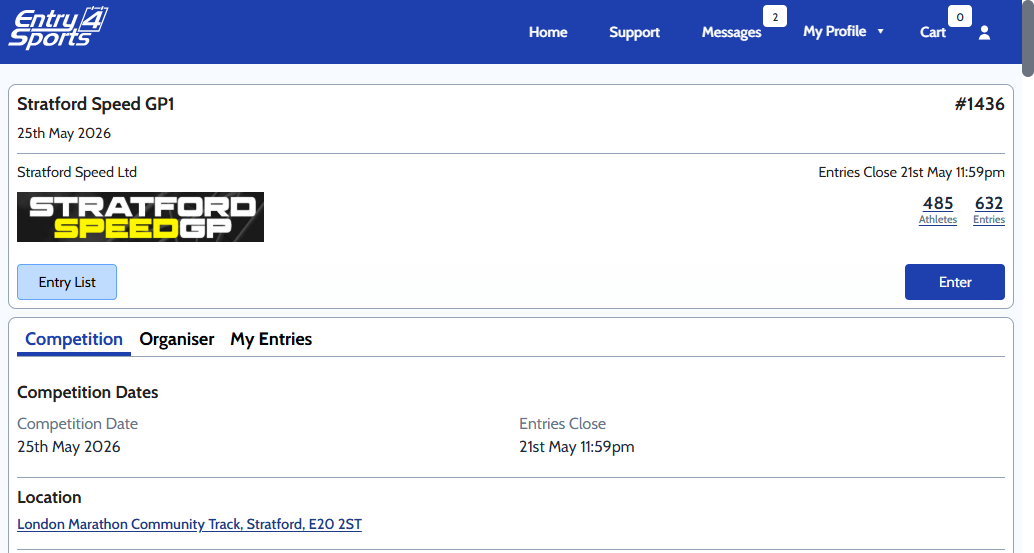
From your competition’s main page:
- Open your competition page.
- Click the Organiser tab.
- In the links list, click Manage Entries (marked with a “NEW!” badge).
You will be taken to the Manage Entries page for your competition.
2. Browse Your Entries
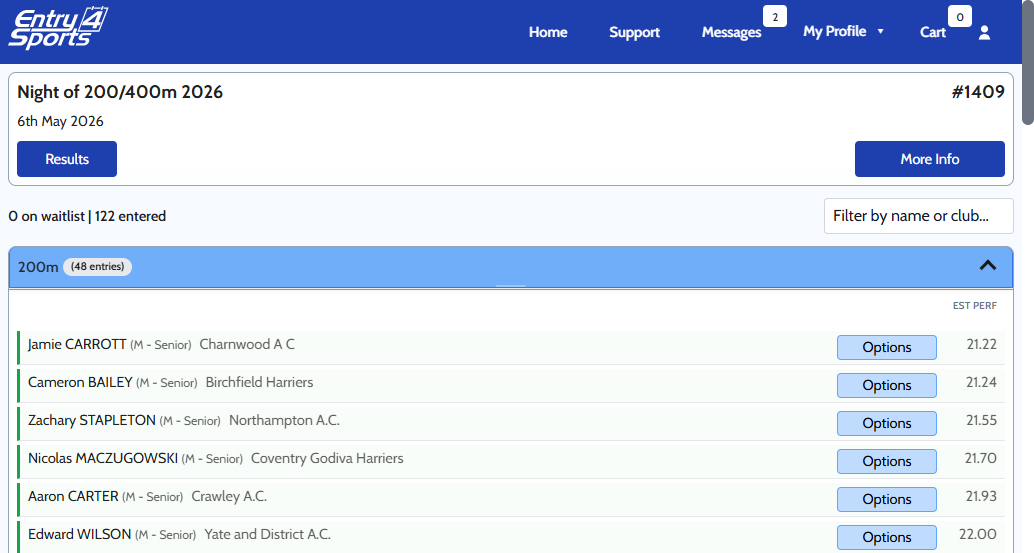
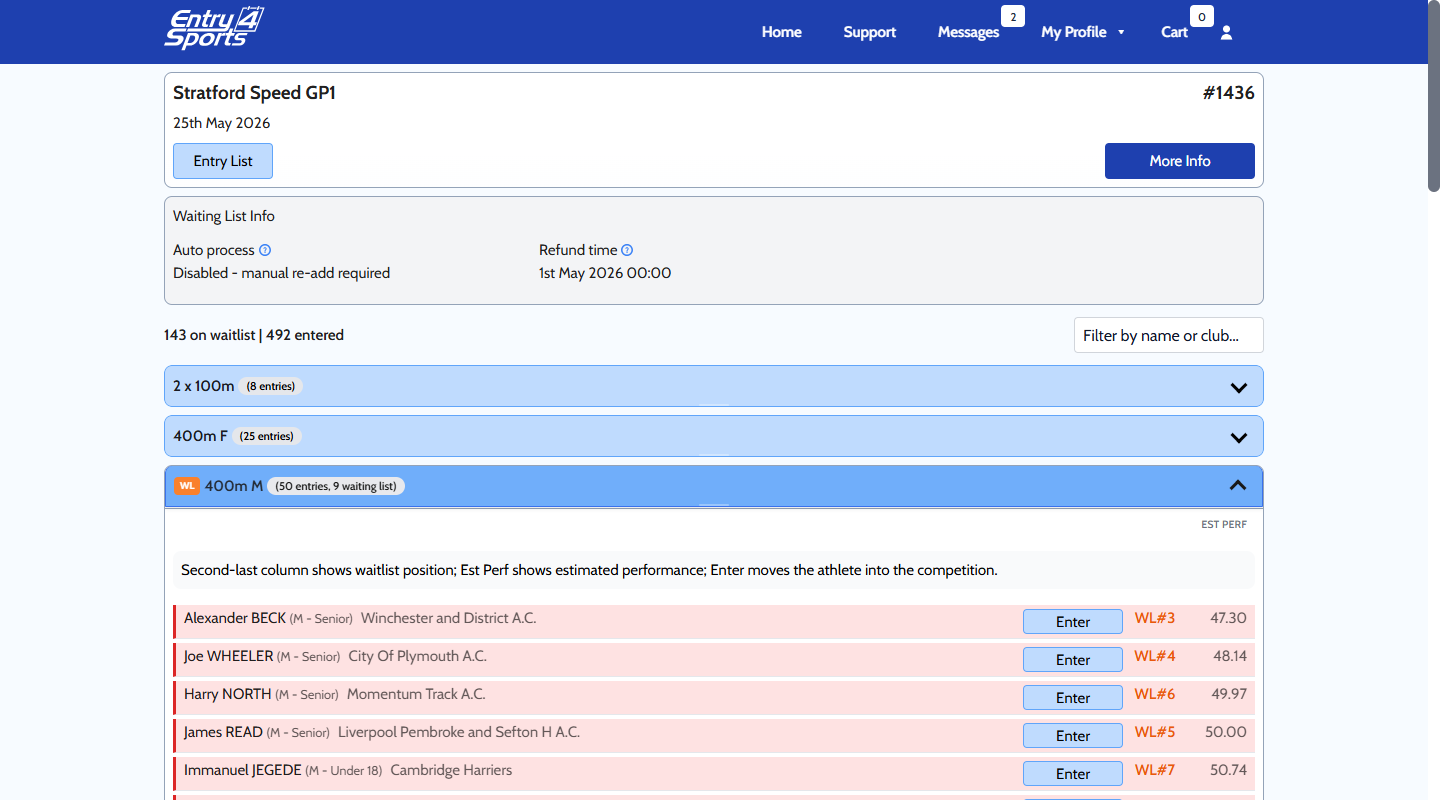
Athletes are grouped by event. Each event section header shows a count of how many athletes are entered. Expand an event to see the full list.
- Athletes already entered have a green left border.
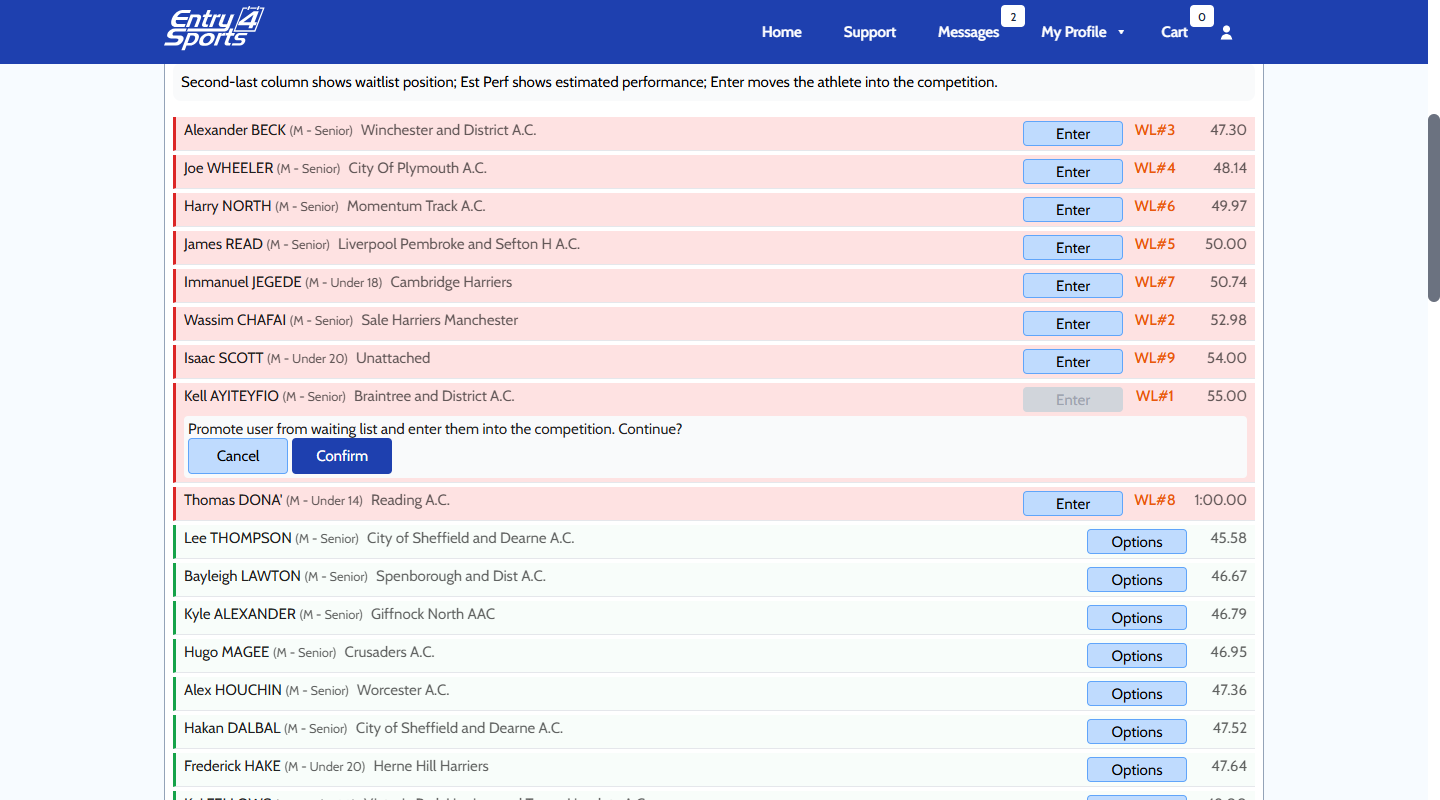
- Athletes on the waiting list (if applicable) have a red left border and show their position (e.g., WL#3).
3. Manage an Athlete’s Entry
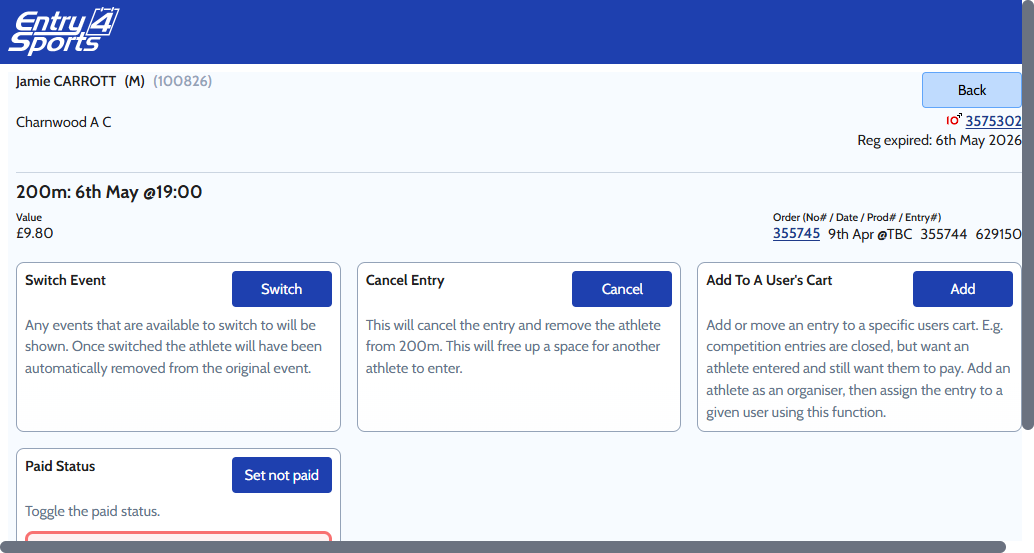
To change or cancel an athlete’s entry:
- Click Options next to the athlete’s name (visible for entered athletes).
- A full-screen panel opens with all available actions — switch events, cancel entry, manage transfers, and more.
- Make your changes and close the panel when done.
Note: The Options button is available to organisers with builder admin permissions.
4. Filter the List
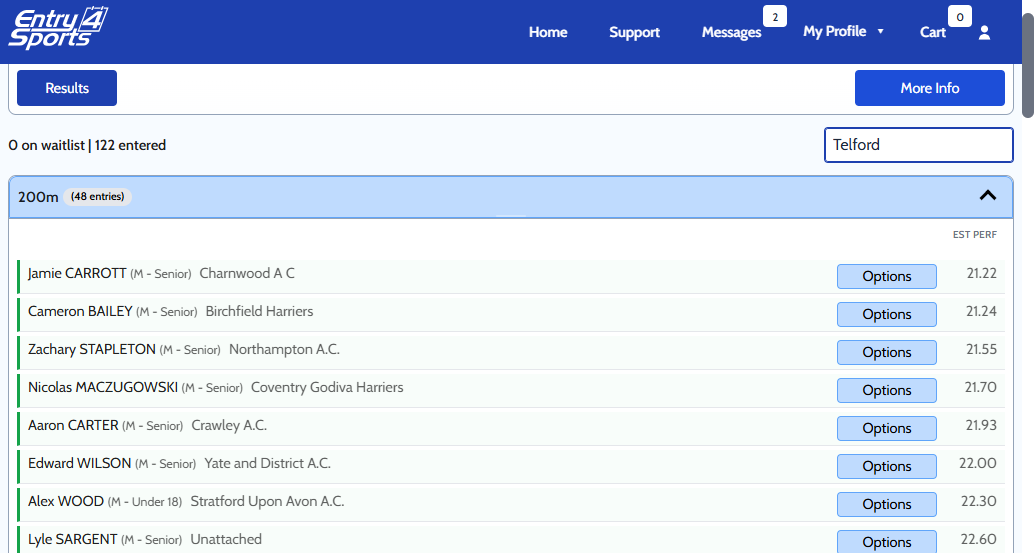
Use the search field at the top to filter by athlete name or club. The filter updates as you type (with a short delay). A count shows how many results match. Click Clear to reset.
5. Waiting List (If Enabled)
If your competition has a waiting list, athletes waiting for a spot appear alongside entered athletes with a red left border and their waitlist position.
To promote a waitlisted athlete:
- Click Enter next to their name.
- Confirm the action in the dialog that appears.
- The athlete is moved into the competition and their row turns green.
Auto-processing: If enabled, athletes are promoted automatically as spots open up and the Enter button will be disabled. Check your settings in the Waiting List Info panel at the top of the page.
6. Check Waiting List Settings
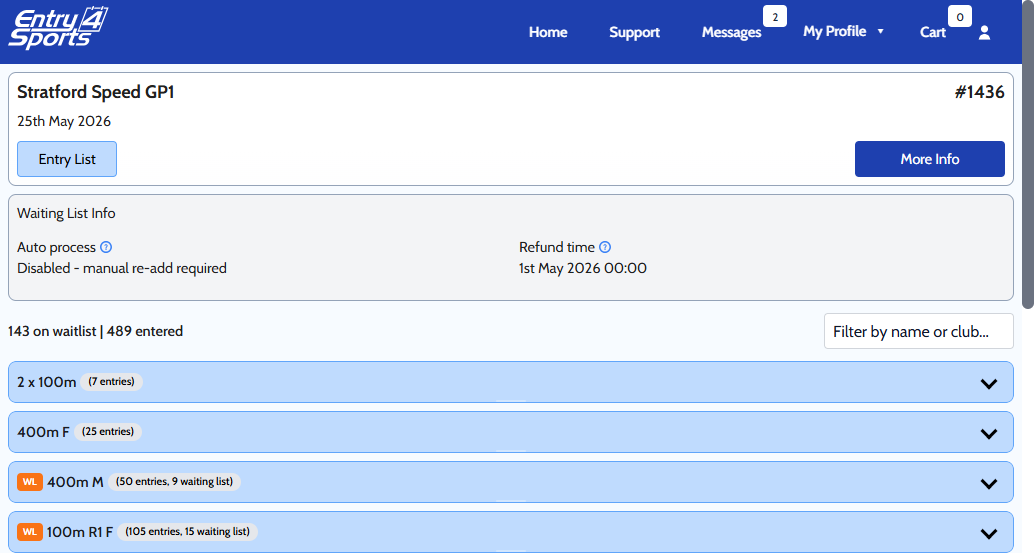
The Waiting List Info panel (visible when your competition has a waiting list enabled) shows:
- Entries close — the time after which no new waitlist entries are accepted.
- Auto process — whether athletes are promoted automatically or require manual action.
- Refund time — when refunds are processed for athletes moved off the waiting list.
Key Features
- Complete entry overview — see every athlete entered in your competition, grouped by event.
- In-place entry management — switch events, cancel entries, and handle transfers without leaving the page.
- Real-time filtering — search by athlete name or club name across your entire entry list.
- Estimated performance column — personal best times and marks are displayed alongside each athlete.
- Waiting list management — promote athletes into open spots manually or automatically.
Pro Tips
- Filter by club for bulk changes: If a club needs to make multiple entry changes, filter by their name to see all their athletes at once.
- Performance sorting helps with decisions: Within each event, athletes are sorted by personal best — track entries by time (fastest first), field entries by best mark. This can help when deciding who to promote from the waiting list.
- Check settings before race day: If you use auto-processing, verify your entries close time and refund settings well ahead of your event.
Need Help?
Contact support through the main Entry4Sports help page or reach out to your competition administrator.
